
Attribution · 2026-07-25 · 9 min read · By Arden Talbot, founder of SheetLink
Google Ads offline conversions, run from a spreadsheet
Capture the gclid at submit, qualify the lead in your sheet, upload the outcome back to Google. The whole loop fits in one spreadsheet, and it changes what your bidding optimizes for.
Google optimizes for what you feed it
Every Google Ads account is an optimization engine pointed at whatever you told it a conversion is. For most lead-gen advertisers, that means a form submission. So the engine dutifully finds people who submit forms - including tire-kickers, students doing research, and competitors downloading your pricing page. The ads get cheaper per lead and the leads get worse, and both trends are the system working exactly as configured.
The fix is not a smarter audience or a better ad. It is feeding the engine a better definition of success. Google calls this offline conversion import: you tell it, after the fact, which clicks turned into qualified leads or closed deals, and bidding starts optimizing toward clicks like those. The infrastructure you need is smaller than most teams assume - a captured click ID and a spreadsheet with a status column.
What a gclid actually is
When auto-tagging is on (it is by default), Google Ads appends a parameter called gclid - the Google Click Identifier - to your landing page URL, as documented in Google's auto-tagging help. It is a unique token for that one click: this campaign, this ad, this keyword, this moment.
That uniqueness is the whole trick. If you store the gclid next to the lead it produced, you hold a key that Google can match back to the click with no ambiguity. Two related parameters, wbraid and gbraid, play the same role for iOS traffic where the classic gclid is not always available; capture all three and let whichever one arrived do the work.
Step one: capture the click ID at submit
The gclid arrives on the landing page URL and dies there unless something saves it. The visitor browses to your contact page, the URL changes, the parameter is gone. So capture has two requirements: read the parameters on first touch, and persist them until a form is actually submitted.
With SheetLink Forms this is the embed script's job: it captures gclid, wbraid, gbraid, and the UTM set from the URL, persists them in localStorage across pages, and attaches them to the submission automatically. No hidden-field wiring, no custom JavaScript. If you want to build the capture yourself instead, our guide to capturing gclid in forms covers the manual version. Either way, the result is a sheet where every ad-driven lead has its click ID sitting in a column.
Step two: the sheet as qualification workbench
Now the human part. Someone - you, a salesperson, a virtual assistant - works the leads and records what happened. In a spreadsheet this is one added column: status, with a small closed vocabulary like new, contacted, qualified, disqualified, won. Add a value column if deals have knowable sizes.
This is the step CRM vendors will tell you requires a CRM. For a team of two to ten people it usually does not. The lead is a row; the qualification is a cell edit; the history is visible to everyone without a login to anything new. The reasons we think Google Sheets works as a form database apply doubly here, because the next step consumes the sheet directly.
Step three: upload outcomes as offline conversions
Google Ads accepts conversion uploads keyed by click ID - through a spreadsheet or CSV upload in the interface, a scheduled import from a Google Sheet, or the API, as described in Google's offline conversion documentation. You define a conversion action (say, "Qualified lead"), then upload rows containing the gclid, the conversion name, the conversion time, and optionally a value and currency.
Because your qualification ledger already has gclid, status, and value columns, the upload is a filter: rows where status became qualified since the last upload. Run it weekly at first. The scheduled-import option can read directly from a Google Sheet, which makes the loop genuinely hands-off once the columns are stable.
What Smart Bidding does with the feedback
Once the qualified-lead conversion action has data, you can point bidding at it. Target CPA and Maximized Conversions strategies begin optimizing toward clicks that resemble the ones that qualified, not merely the ones that submitted. If you upload values, value-based strategies like target ROAS can weight bids by expected deal size.
The practical effect advertisers report is a shift in traffic composition: fewer cheap leads that never answer the phone, more expensive clicks that turn into pipeline. Cost per lead often rises while cost per qualified lead falls - which is the correct trade, and one you can only see if your spreadsheet distinguishes the two. This is the honest reason to bother with the loop: it moves the optimization target from a form event you no longer care about to a business event you do.
A practical column layout
Here is a layout that has the virtue of mapping one-to-one onto both the form payload and the upload format:
submitted_at- timestamp of the submission.name,email,phone,message- the visible form fields.gclid,wbraid,gbraid- captured click IDs, usually only one populated.utm_source,utm_medium,utm_campaign- human-readable context for the same click.status- your qualification vocabulary.conversion_time- when the lead qualified, not when it submitted.value,currency- optional deal economics.uploaded_at- blank until this row has been sent to Google, your dedupe guard.
The form writes the first four groups; humans write the next three; the upload process writes the last. One row, whole lifecycle.
Timing, windows, and other gotchas
Three details cause most upload failures. First, timing: the conversion time must be after the click time, and Google only accepts conversions within the conversion action's click-through window, so do not sit on qualified leads for months before uploading. Second, format: conversion times need an explicit time zone or the account default applies, which quietly shifts attribution across day boundaries. Third, duplicates: Google deduplicates identical combinations of click ID, conversion name, and conversion time, but the cleaner discipline is the uploaded_at column - never re-send a row that has one.
And a fourth, upstream of all of these: the gclid must be present. If your redirects strip query strings or your form page never sees persisted parameters, the loop dies at step one. Our essay on lead attribution failure modes covers the plumbing.
Why the spreadsheet beats heavier tooling here
The standard objection: this should live in a CRM with a native Google Ads integration. Sometimes, yes - if you already run one and sales actually updates it. But the integration path adds moving parts you do not control, and the middleman tax is real: sync delays, field-mapping surprises, per-seat pricing for people who only need to flip a status cell.
The spreadsheet path has a shorter failure chain. Submissions land as rows directly - SheetLink Forms writes to the Google Sheets API with no intermediary, with retries and a delivery log, as described in how it works. Qualification is a cell edit. Upload is a scheduled import reading the same sheet. Every state in the pipeline is visible by scrolling. When something breaks, you can see where, which is more than most integration chains offer.
Closing the loop, concretely
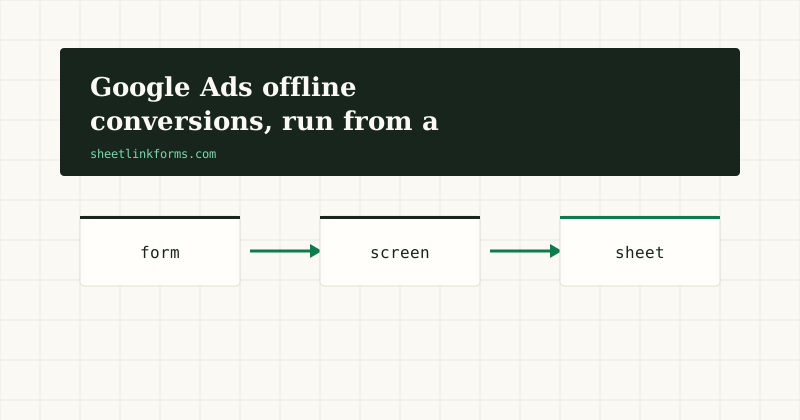
The whole system, end to end: an ad click lands with a gclid; the embed script captures and persists it; the visitor submits a form on whatever page they reach; the row lands in your sheet with the click ID in its column; a human marks it qualified and enters a value; a weekly upload sends qualified rows back to Google; bidding shifts toward clicks that qualify. Total new software: one script tag and one conversion action.
If you want to see the capture half running, the live demo feeds a public sheet you can inspect, and the ad landing page use case shows the setup for a paid campaign. SheetLink Forms is free to start - start free, no card and no invite, and the capture side of the loop is running the same afternoon.
FAQ
What if a lead has no gclid?
Then it cannot be uploaded by click ID - but check the wbraid and gbraid columns first, since iOS traffic often carries those instead. Rows with no click ID at all usually mean a stripped redirect or a non-ad source; the UTM columns will tell you which.
How is this different from enhanced conversions for leads?
Enhanced conversions for leads matches on hashed email or phone instead of a click ID. It is a good complement when gclids are missing, but click ID upload is the more direct match when you have the ID. The capture discipline is identical either way: get the data into the row at submit time.
How often should we upload?
Weekly is a sensible start; daily once volume justifies it. The constraint is the conversion window on your conversion action - upload well inside it. A scheduled import from a Google Sheet removes the human from the cadence entirely.
How many conversions does Smart Bidding need?
Bidding strategies work better with more data, and Google publishes recommended minimums for some strategies in its own documentation. If your qualified-lead volume is small, keep the campaign optimizing on raw leads while you accumulate uploaded history, then switch the goal once the numbers support it.
Can this work from Excel instead of Google Sheets?
The qualification ledger can live in Excel Online - SheetLink Forms writes rows into an Excel table just as it does a sheet. For the upload leg you would export a CSV or use the API, since Google's scheduled imports read Google Sheets.
Does uploading a conversion twice double-count it?
Google deduplicates rows with the same click ID, conversion name, and conversion time. But relying on that invites subtle drift - keep an uploaded_at column and only ever send rows where it is blank, then stamp them.
What conversion value should we assign a qualified lead?
If deal sizes are knowable, use expected value: average deal size times close rate for that lead type. If not, a constant value per qualified lead still improves on nothing, because it lets value-based bidding distinguish qualified from unqualified traffic.
Does SheetLink Forms upload conversions to Google Ads for us?
No - we handle the capture and delivery half: click IDs and UTM parameters land in your sheet automatically, in named columns. The upload leg runs through Google Ads itself, typically as a scheduled import reading the very same spreadsheet. The docs cover exactly what the embed captures.
Start capturing the gclid today
Every ad-driven submission lands in your sheet with its click ID in a column - the raw material of the offline conversion loop.
Start freeSee the live demoWhy your lead source data is wrongUTM conventions that survive real campaigns